



The Transliterate command of Tag Editor rewrites titles, artists, albums and file names written in Cyrillic, Greek, Chinese, Japanese, Korean, Arabic, Hebrew, Hindi or Thai in Latin letters. Every song then has a name you can read on any player and find by typing on any keyboard.
It pays off when:
- your car stereo, an older MP3 player or a network player shows question marks or empty boxes instead of song names;
- you collect music in a language you do not read, such as K-pop, J-pop, Russian rock or Bollywood soundtracks, and want names you can read out, search for and type;
- tags loaded from online databases such as MusicBrainz arrive in the artist's own script;
- you copy music to a USB stick or share it with friends whose devices cannot show that script.
Transliterate tags
Select the rows or the cells to rewrite, then choose Edit / Transliterate / Detect Automatically. The same menu is under the Action button of the toolbar, and under the Translit button, which you can add to the toolbar.
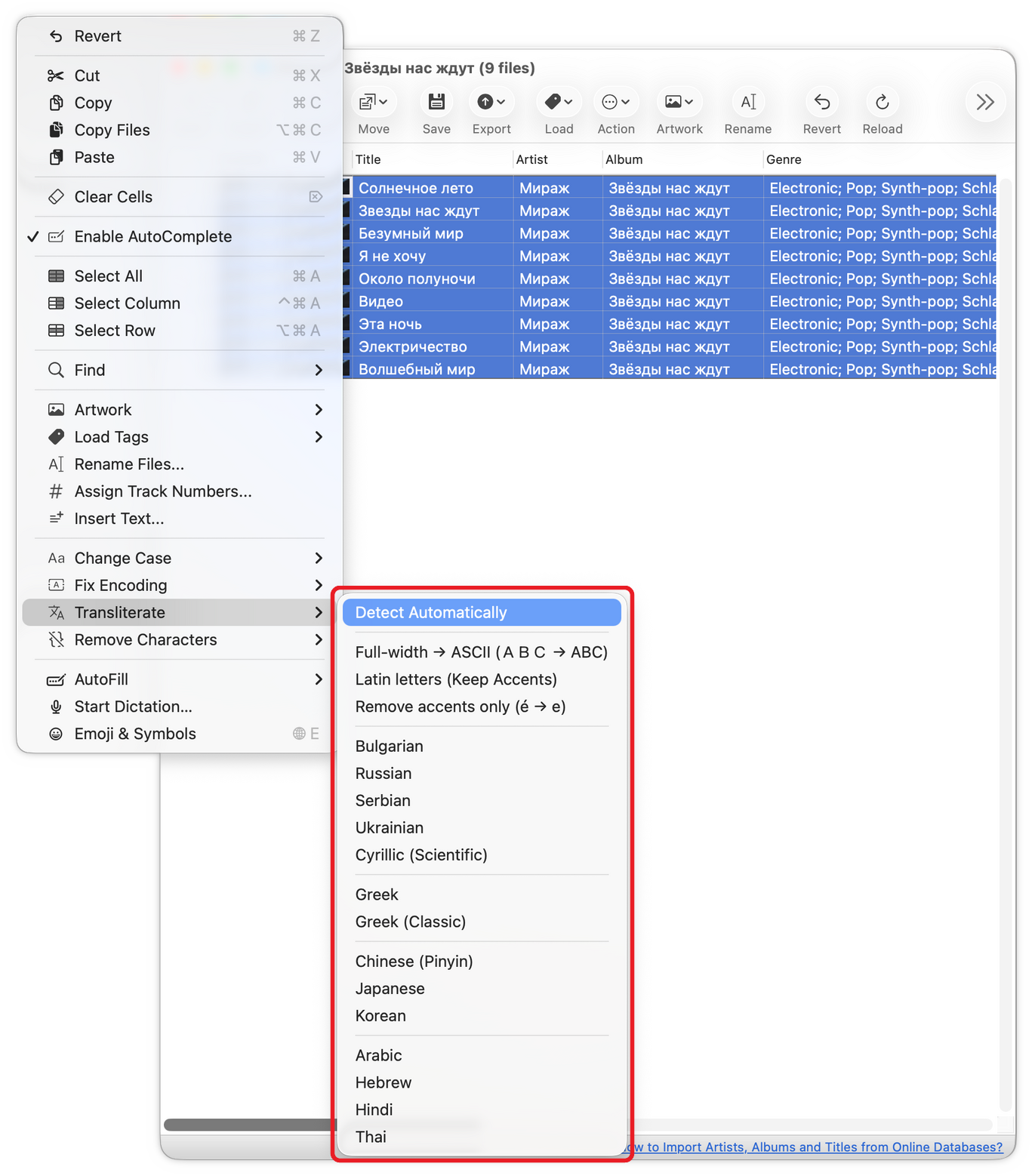
The 'Transliterate' menu
Detect Automatically reads the whole selection to tell its language, then uses that language's own spelling: Чайковский becomes Chaykovskiy, a Ukrainian album gets the Ukrainian spelling, and 周杰伦 becomes zhou jie lun. Japanese kanji get their Japanese reading, so 坂本龍一 becomes sakamoto ryuuichi, not a Chinese reading. A cell in another script than the rest of the selection is read on its own.
Words already in Latin letters keep their spelling, so English album names, genres and comments in the same rows stay as they are. Only their accents go: Niño becomes Nino.
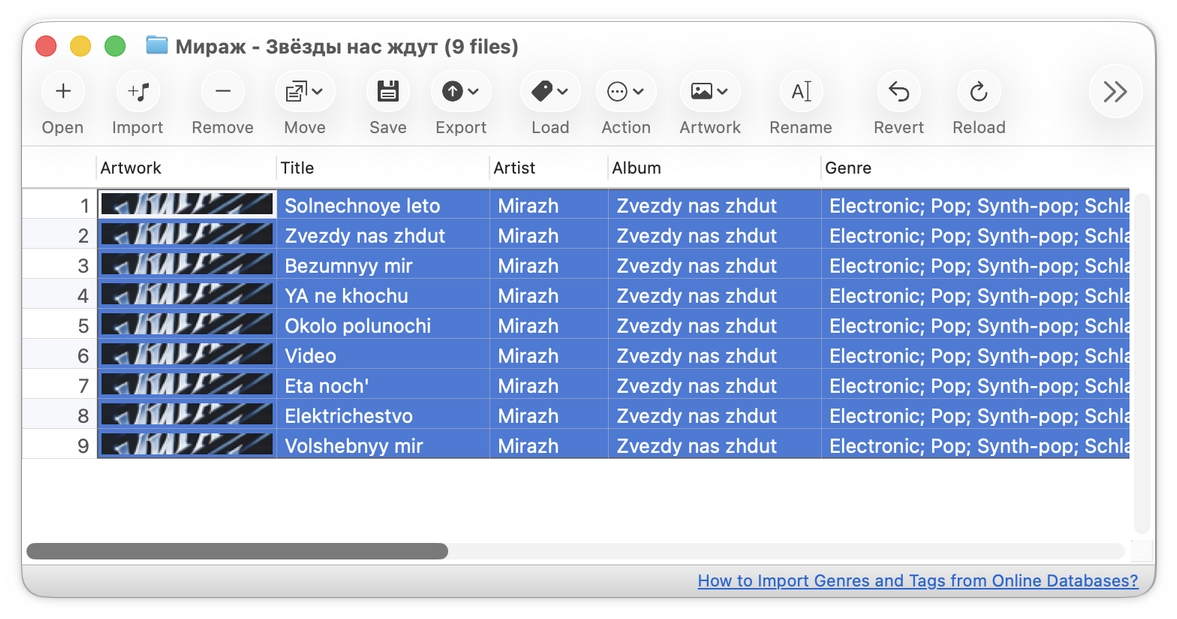
The same album in Latin letters
Tag Editor tells you how many tags changed. Nothing is written to the files until you press Save, and Edit / Revert (⌘Z) brings the original text back.
Choose the language yourself
Detect Automatically suits most albums. When you want one particular standard for the whole selection, pick it in the same menu:
- Russian, Ukrainian, Bulgarian and Serbian use each language's own spelling, the one English-language maps use (BGN/PCGN).
- Cyrillic (Scientific) gives one Latin letter for each Cyrillic letter: Жуков becomes Zukov instead of Zhukov.
- Greek writes Ελληνικά as Ellinika, the way it sounds today; Greek (Classic) writes Ellenika.
- Chinese (Pinyin), Japanese and Korean: 北京 becomes bei jing, 東京 becomes toukyou, 서울 becomes seoul.
- Arabic, Hebrew, Hindi and Thai: नमस्ते becomes namaste. Arabic and Hebrew are written without most vowels, so the Latin text has none either.
Three more commands tidy text that is already in Latin letters:
- Full-width → ASCII turns the wide letters and digits of many Japanese and Chinese releases into ordinary ones: AKB48 becomes AKB48. Kana stay as they are.
- Latin letters (Keep Accents) rewrites the other scripts in Latin letters and keeps accented letters: café stays café.
- Remove accents only (é → e) changes the accents alone: Niño becomes Nino, and Japanese kana stay as they are.
Which tags change
Transliterate changes the selected cells of the columns shown in the window. With the File Name column shown, the file names change too, and the files get their Latin names when you press Save. Hide a column first to keep it as it is.
Tags that show nonsense such as Ìèðàæ instead of Cyrillic are in the wrong encoding, not in another script. Fix them with Edit / Fix Encoding first, then transliterate.
Transliterate is free in Tag Editor. With Rapid Tagging, Tag Editor saves the result to thousands of tracks in one go.
Read More: Fixing tags encoding >>
Read More: Renaming audio files >>
Read More: Toolbar customization >>
