



Names like "Track 01" or "AudioTrack 05" say nothing about a song, while "06 - ABBA - One of Us" says what the file holds before you play it. Advanced Renaming in Tag Editor builds such names from any tags, in any order, with your own separators, and renames a whole album or collection in one click.
Names built from tags keep albums in order on car stereos and phones, make songs easy to find in Finder and on USB sticks, and still tell what a song is when it travels without its folder.
- Opening Advanced Renaming
- The Advanced Renaming window
- Building a pattern
- Case and Spacing
- Previous patterns
- Renaming and saving
- Best filename patterns
- Tips for good filenames
Opening Advanced Renaming
Select the files to rename: a single cell, several cells, or the whole File Name column. Then open the renaming window in one of three ways:
- click the button with three dots in a selected File Name cell;
- click Rename on the toolbar;
- choose Edit > Rename Files... in the menu.
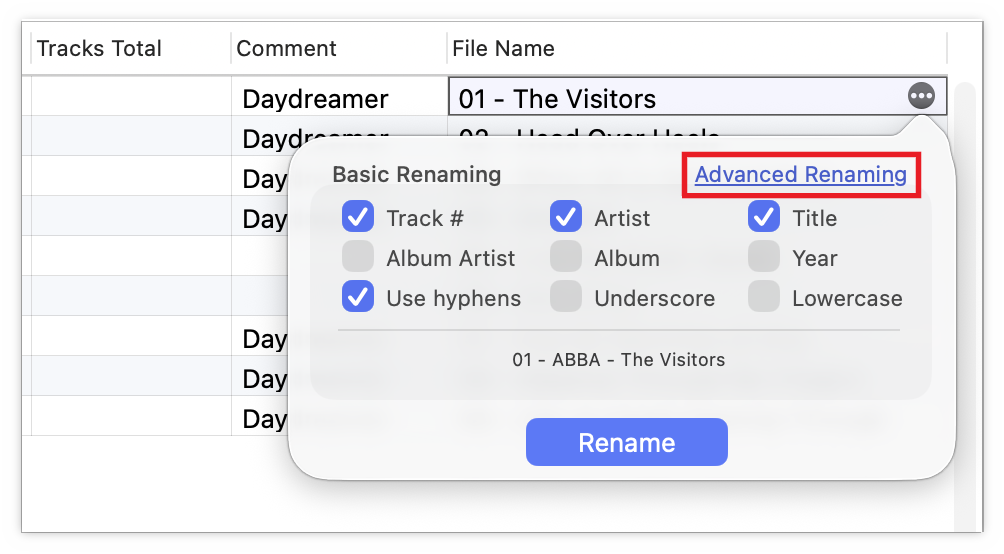
The toolbar button and the menu command bring the File Name column into view even when it is hidden. If the window shows Basic Renaming with its checkboxes, click Advanced Renaming at its top right. Tag Editor remembers the choice and opens Advanced Mode from then on; Basic Renaming in the same place switches back.
The Advanced Renaming window
Everything a new filename needs fits in one small window, and its bottom line shows the result before a single file changes.
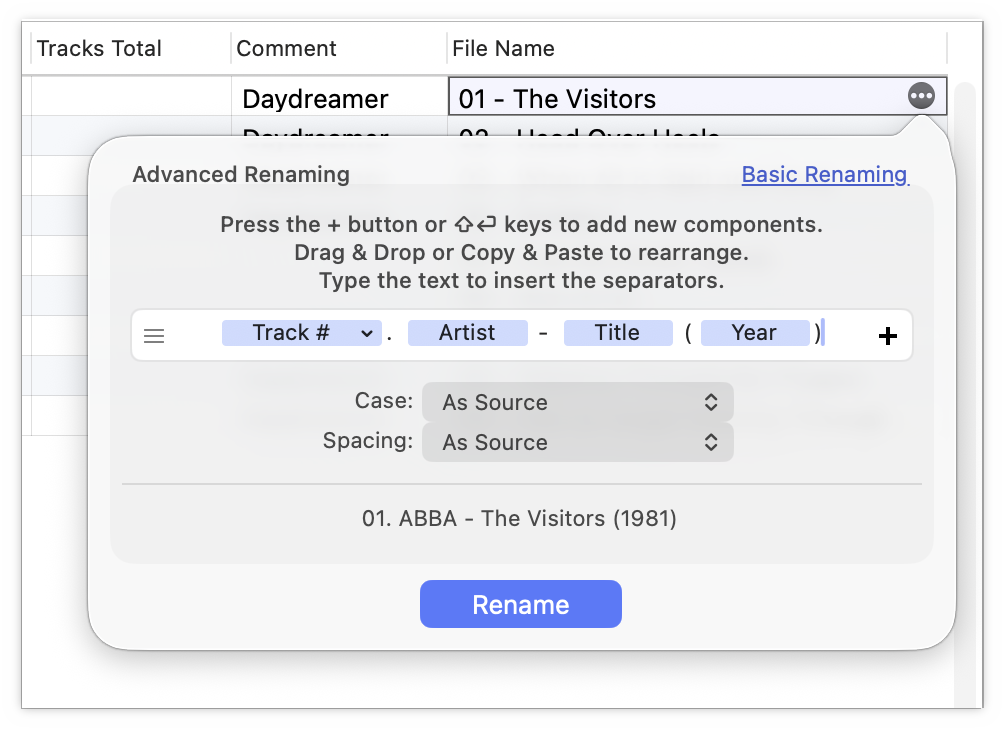
- Advanced Renaming and Basic Renaming: the window's title, and the link that switches to the other mode.
- The pattern field: the new filename. Its blue components take their text from each file's tags; the text between them is the separators you type.
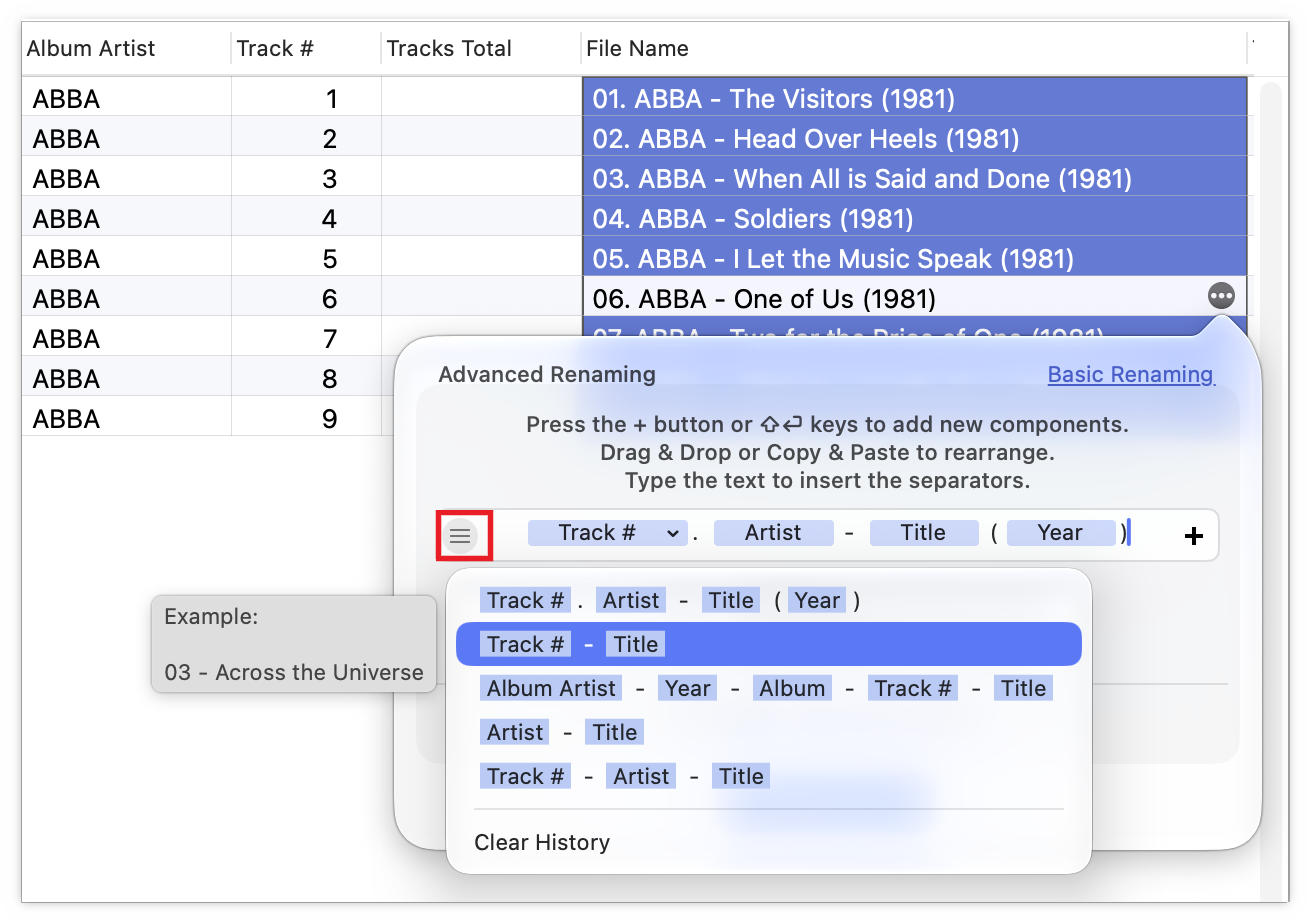
- The history button with three lines, on the left of the field: the patterns used before.
- The + button, on the right of the field: adds a component. ⇧+Return does the same from the keyboard.
- Case and Spacing: change the capital letters and the spaces of the whole name.
- The example line: the new name of the file you opened the window from. It changes as you edit the pattern.
- Rename: gives every selected file its new name. Return does the same.
Building a pattern
A pattern reads like the name it makes: components where each file's own tags go, and typed text around them. One pattern then names every song of an album, or of the whole collection, the same way.
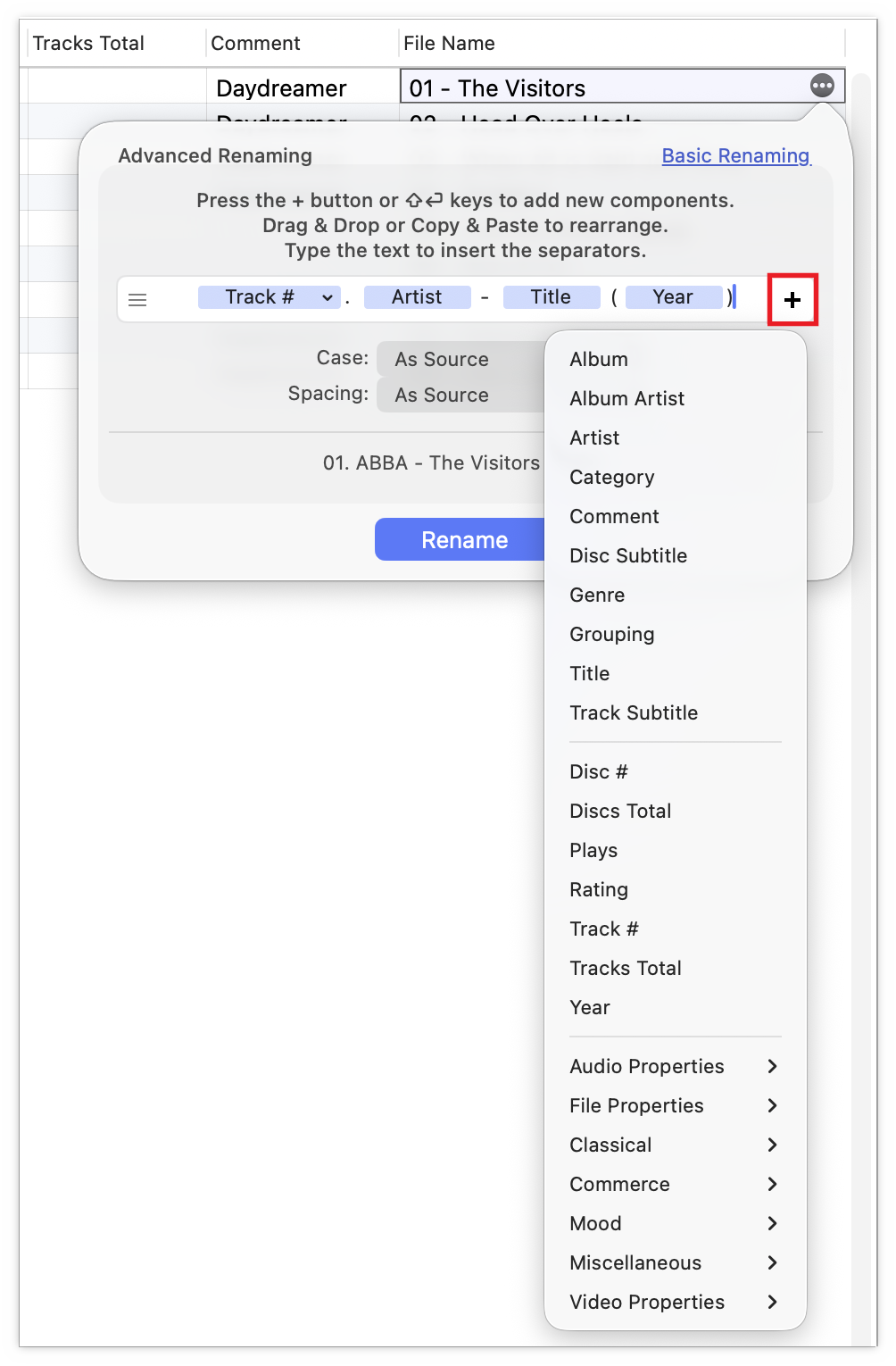
- Add a tag. Click + or press ⇧+Return, and choose the tag from the menu. It goes in where the text cursor stands. The common tags come first, from Album to Year; the Audio Properties, File Properties, Classical, Commerce, Mood, Miscellaneous, and Video Properties submenus hold the rest, from Bit Rate to Composer and BPM: more than 70 in all.
- Type the separators. Click between two components, or after the last one, and type: spaces, hyphens, dots, brackets, or any words, such as "CD" before a disc number.
- Change the order. Drag a component to its new place, or cut it and paste it there.
- Remove a component. Click it and press Delete.
- Set a component's options. A component with an arrow has options of its own. For Track # and the other numbers, choose how many digits it has: '1', '02', '003', and so on. Dates, file sizes, durations, sample rates, and languages offer the ways they can be written.
- Copy a pattern as text. Components copy as plain text, such as
{{trackNumber}} - {{title}}, which you can keep in a note or send to a friend. Pasted into the pattern field, the text turns back into components, so the patterns below are ready to use.
Case and Spacing
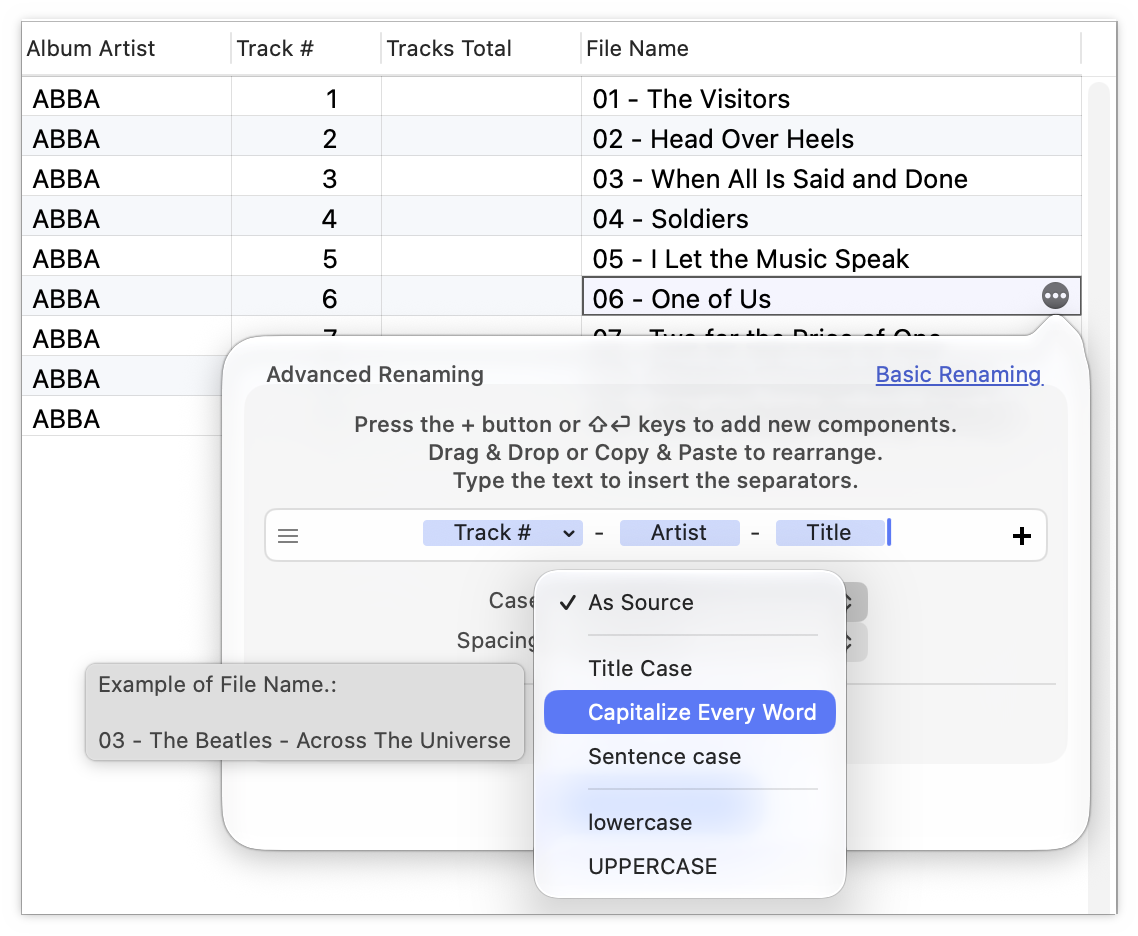
The two settings under the pattern tidy the whole name at once, tags and separators alike, and leave the tags themselves as they are.
- Case sets the capital letters. 'As Source' keeps them as they are, 'Title Case' capitalizes the main words ("One of Us"), 'Capitalize Every Word' every word ("One Of Us"), 'Sentence case' only the first one, and 'lowercase' and 'UPPERCASE' all of them.
- Spacing sets the spaces. 'As Source' keeps them, '_Underscore_' and '-Hyphen-' replace them with underscores or hyphens, and 'RemoveSpaces' takes them out, for places that do not take spaces, such as a web address. The spaces around your separators change too, so with these options type the separators without spaces.
Point at an option in either list to see an example of the name it makes. Tag Editor keeps both settings with the last pattern for the next time.
Previous patterns
The history button with three lines, on the left of the pattern field, lists the last patterns you renamed with, up to 15, the newest first. Choose one to put it back into the field instead of building it again: a pattern made once serves every album that follows. Point at a pattern to see an example of its filename, and choose Clear History at the bottom of the list to empty it.
Renaming and saving
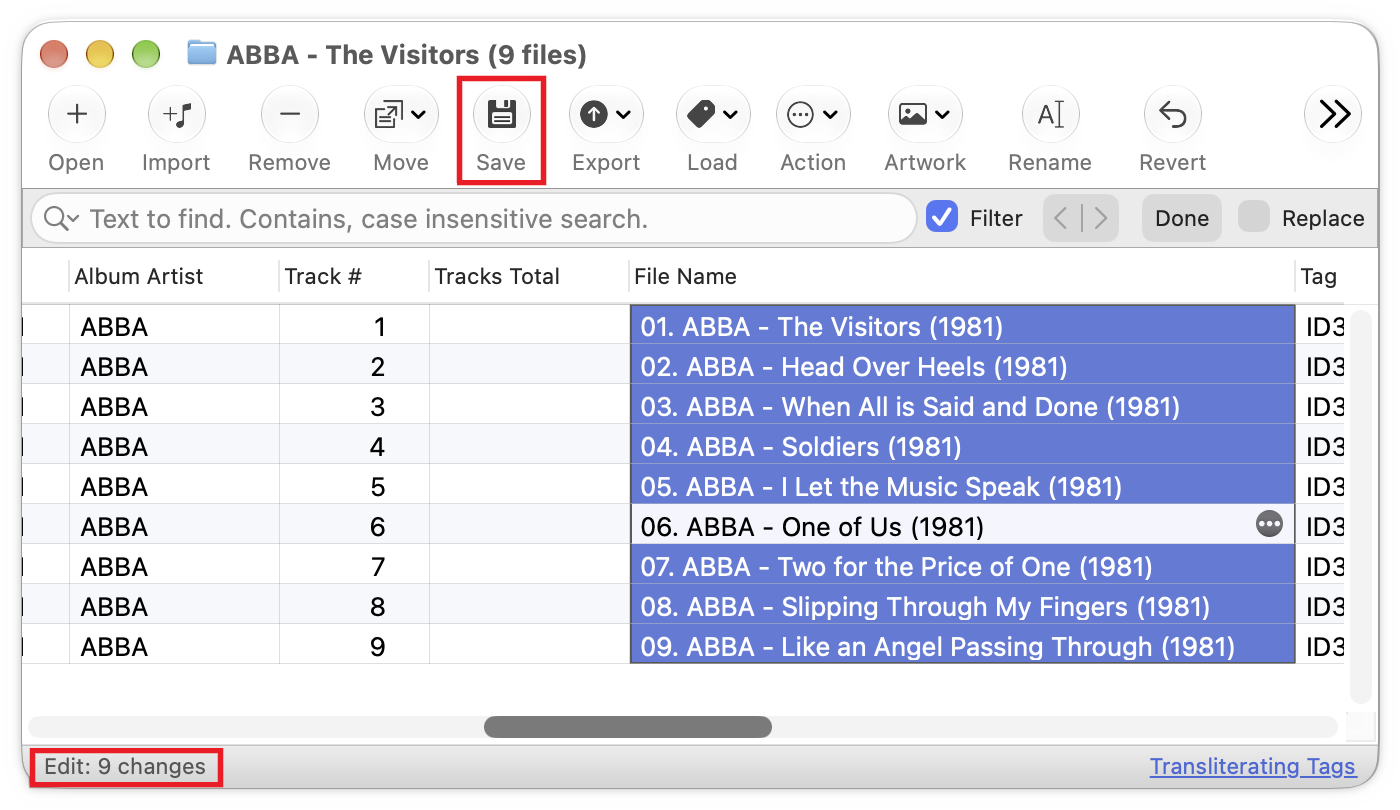
Click Rename or press Return, and every selected file shows its new name in the File Name column at once. Nothing on the disk has changed yet: look the names over, then press ⌘+S to save, which renames the files, or ⌘+Z to undo and get the old names back.
Best filename patterns
No single name suits every use, but a few patterns have proved themselves in music players, media servers such as Plex, car stereos, and DJ software. Each one below shows the name it gives a song from ABBA's album "The Visitors", and the pattern as text. To use one, copy the text, click in the pattern field, press ⌘+A and then ⌘+V.
Albums kept in their own folders
The folder already names the artist and the album, so the file needs only its place and its title. Media servers such as Plex suggest this form.
Example: 06 - One of Us
Pattern: {{trackNumber}} - {{title}}
Songs that leave their folder
On a phone, a USB stick, or in a shared folder, the artist travels with the song. The same pattern suits compilations, where every song has its own artist. Tag Editor starts with this pattern.
Example: 06 - ABBA - One of Us
Pattern: {{trackNumber}} - {{artist}} - {{title}}
A folder of single songs
Without track numbers, Finder lists the songs by artist, and every artist's songs by title.
Example: ABBA - One of Us
Pattern: {{artist}} - {{title}}
Albums on several discs
Disc and track together keep a two-disc album in order in one folder, where track 1 of the second disc would otherwise sit beside track 1 of the first. A file without a disc number counts as disc 1.
Example: 1-06 - One of Us
Pattern: {{discNumber}}-{{trackNumber}} - {{title}}
A complete archive
Every file names its artist, year, album, and place, so it can be found and put back even after the folders are lost. An artist's albums line up by year.
Example: ABBA - 1981 - The Visitors - 06 - One of Us
Pattern: {{albumArtist}} - {{year}} - {{album}} - {{trackNumber}} - {{title}}
Classical music
Composer and work come first, as classical catalogues list them, and the movement number keeps the movements of a work in order.
Example: Antonio Vivaldi - The Four Seasons - 1. Allegro
Pattern: {{composer}} - {{work}} - {{movementNumber}}. {{title}}
DJ crates
Key and BPM in front sort a crate by the key and tempo that DJ software or Mixed In Key wrote into the tags, so tracks that mix well sit side by side. BPM is written with three digits, '098' before '128', so slow tracks come first.
Example: 8A - 128 - Artist - Title
Pattern: {{initialKey}} - {{tempo}} - {{artist}} - {{title}}
Audiobooks
Three-digit chapter numbers keep chapter 100 after chapter 99, and the book's title keeps every chapter recognizable on its own.
Example: Book Title - 001 - Chapter One
Pattern: {{album}} - {{trackNumber:003}} - {{title}}
Tips for good filenames
- Fix the tags first. A name is only as good as the tags it is made of. Where a tag is empty, the name gets a stand-in: 'Unknown Artist', 'Unknown Album', 'Unknown Title', '0000' for the year, or '00' for the track number. Look for them in the example line and in the File Name column, fill the tags, and rename again.
- Start with a number that has leading zeros. Many car stereos, phones, and USB players play a folder in the order of its filenames, and only '01', '02', … '10' keep that order; '1', '10', '2' does not.
- Keep every name unique. Two songs of an album can share a title, as a live take and a studio take do; a track number keeps their names apart.
- Keep names short. A car stereo or a phone may show only the start of a long name, so put first what tells songs apart, and leave out what the folder already says.
- Do not worry about slashes. A slash in a tag, as in the band name AC/DC, becomes a space, so a tag never breaks a name into folders.
- Use one pattern for the whole library. Every album then looks the same, and songs are found the same way.
Read More: Renaming of Audio Files >>
Read More: Batch Tagging >>
Read More: Loading Artist, Album and Title from Online Databases >>
Read More: Automatic Track Numbering >>
